
AI Tools
AI Prompting & Generation
How to use AI to generate outlines, style designs, and create photorealistic renders.
What is a prompt?
Just type what you need and we'll generate a new image.
The more specific your prompt, the closer the result. Describe materials, colors, and construction, not just the vibe: "White pebbled leather upper, gum rubber outsole, gold metal eyelets."
The chat sidebar
After selecting a shoe, click Prompt in the toolbar. This is a familiar panel, like other AI tools. Type what you want in natural language and the AI generates it.
Reference images
Drag a swatch, texture, or inspiration image into the prompt box. The AI uses it as a visual reference alongside your text.
Bulk Prompting
You can select multiple shoes at once, write a single prompt, and get multiple outputs. The same prompt applies to every selected shoe, perfect for exploring one idea across an entire range.
Using swatch library in a prompt
You can reference your own custom swatches from a prompt by typing # followed by the swatch name.
Example Prompts
| Name | Prompt | Input | Output |
|---|---|---|---|
| Style Revisions | Red leather upper with white straps. | 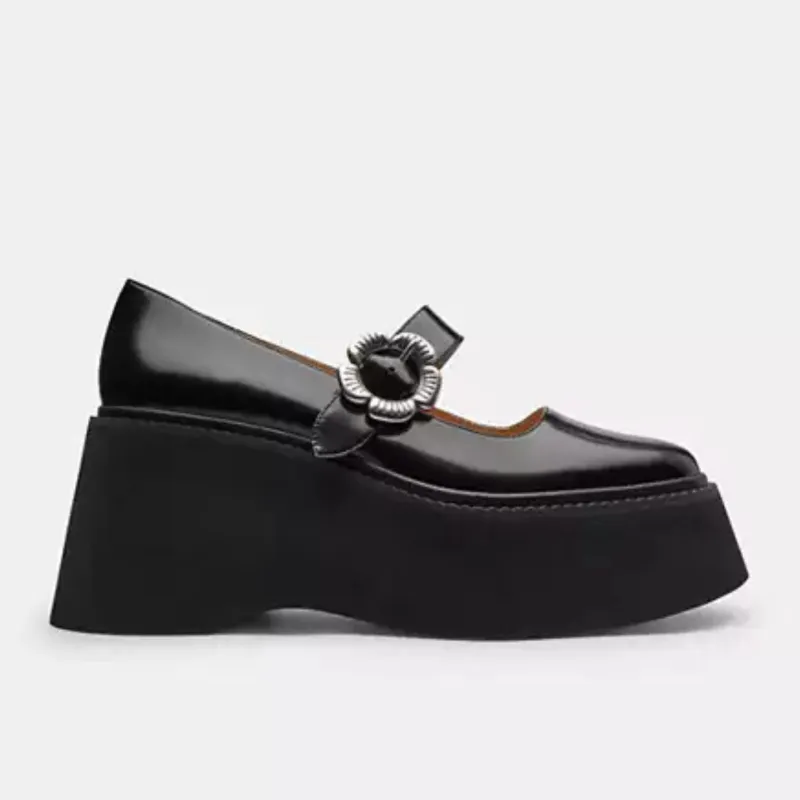 | 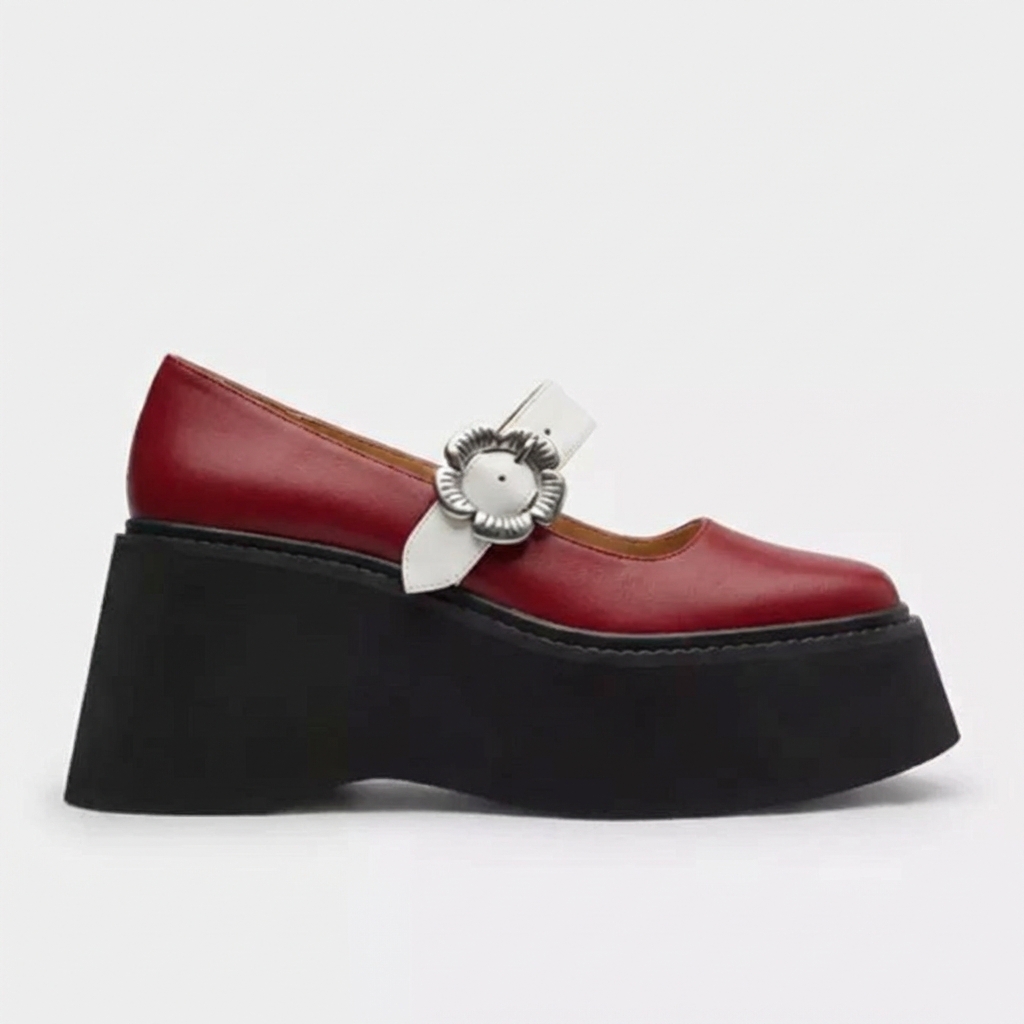 |
| Realistic Renders | Convert this sketch into a photorealistic image, maintaining exact colors. | 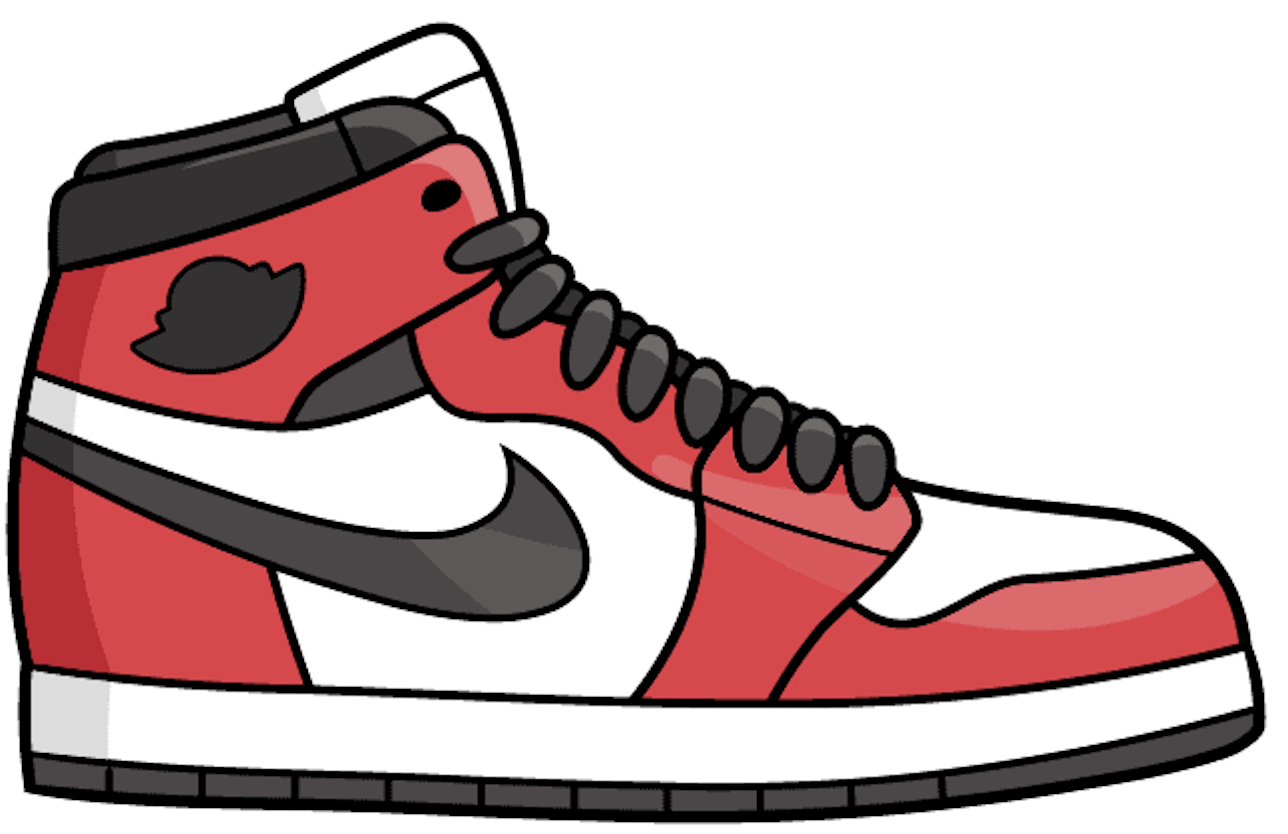 | 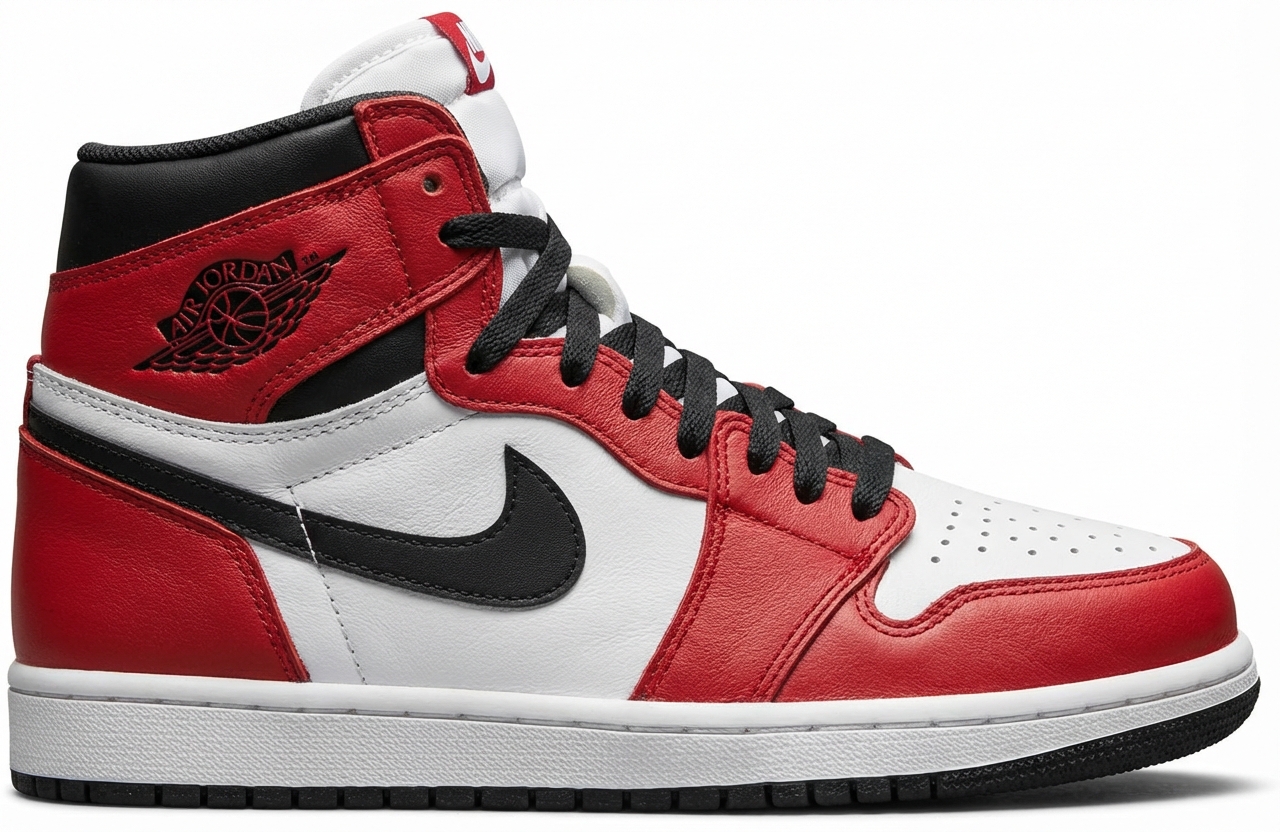 |
| Marketing Shots | Editorial fashion photo, leg and feet shot, model wearing exact shoe, blue leggings, running in dutch country-side, dramatic morning light, soft shadows, sharp focus on footwear. Aspect ratio 9:16. | 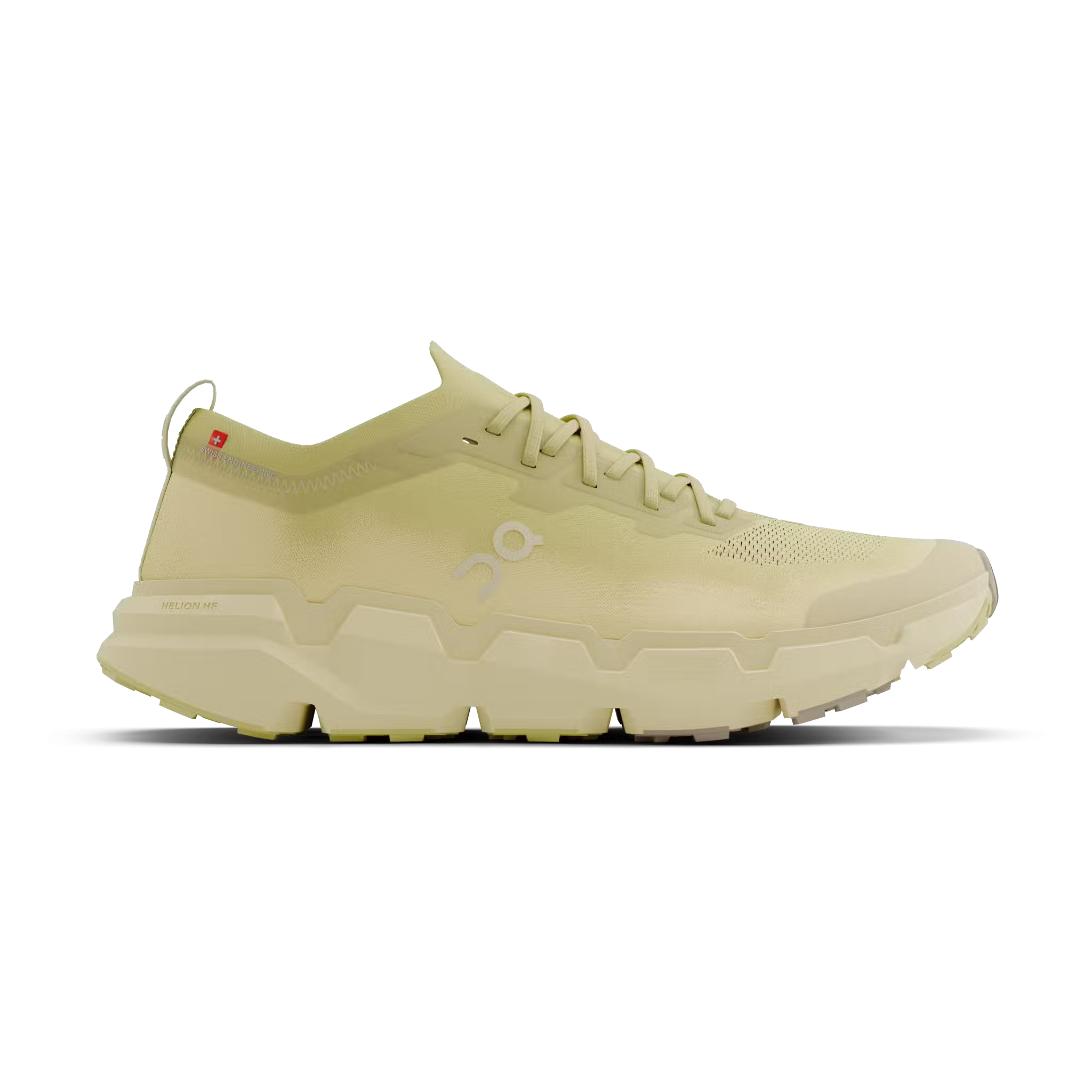 | 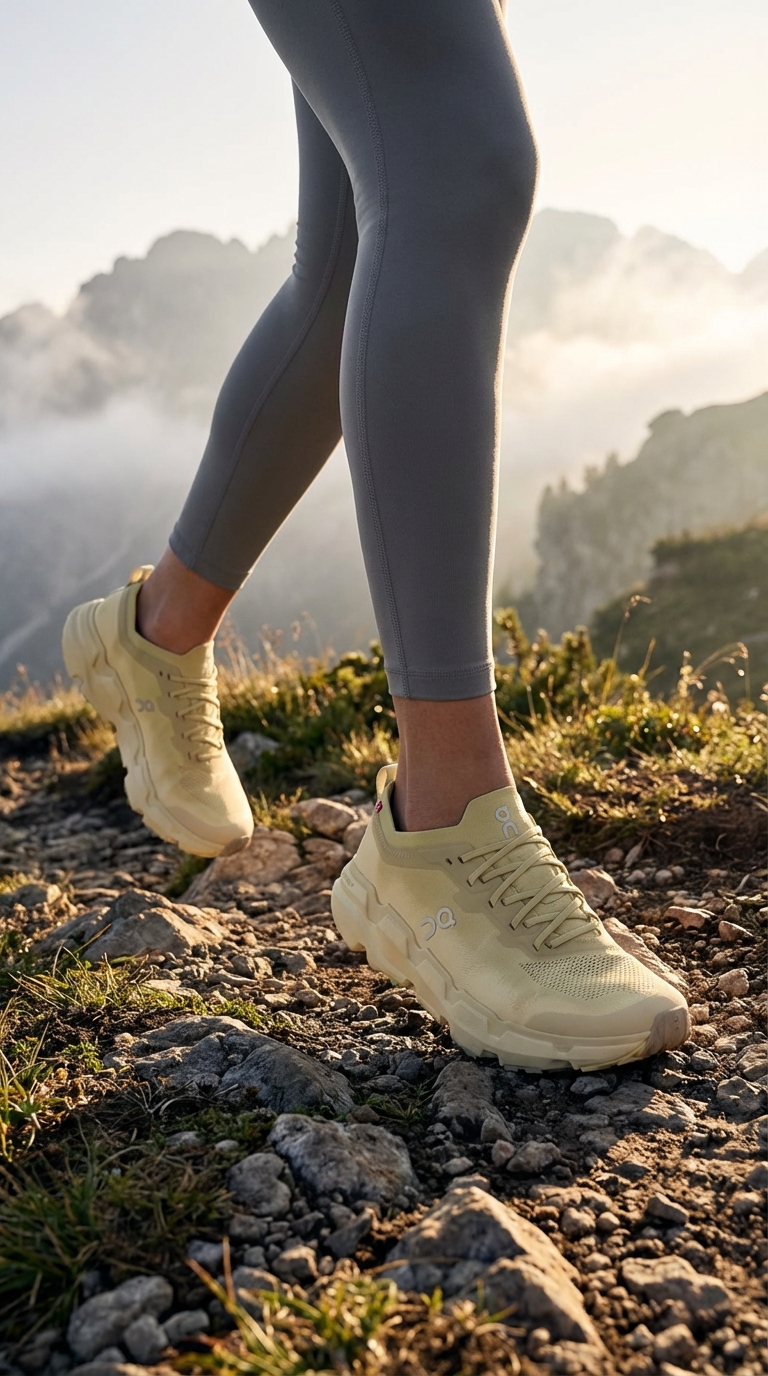 |
| Outline | Create a clean, black and white outline image of this footwear, suitable for coloring and design specifications. | 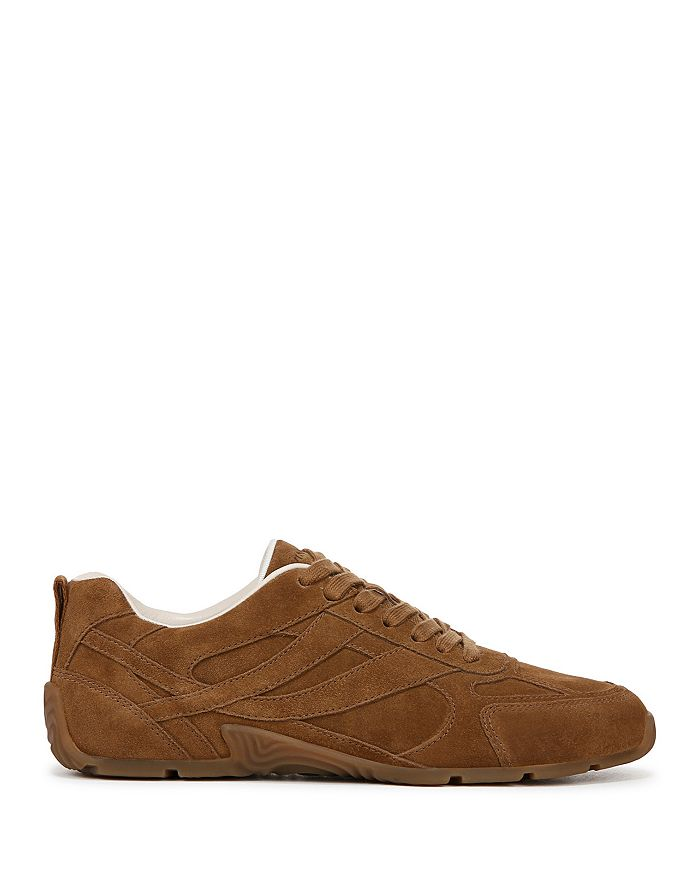 | 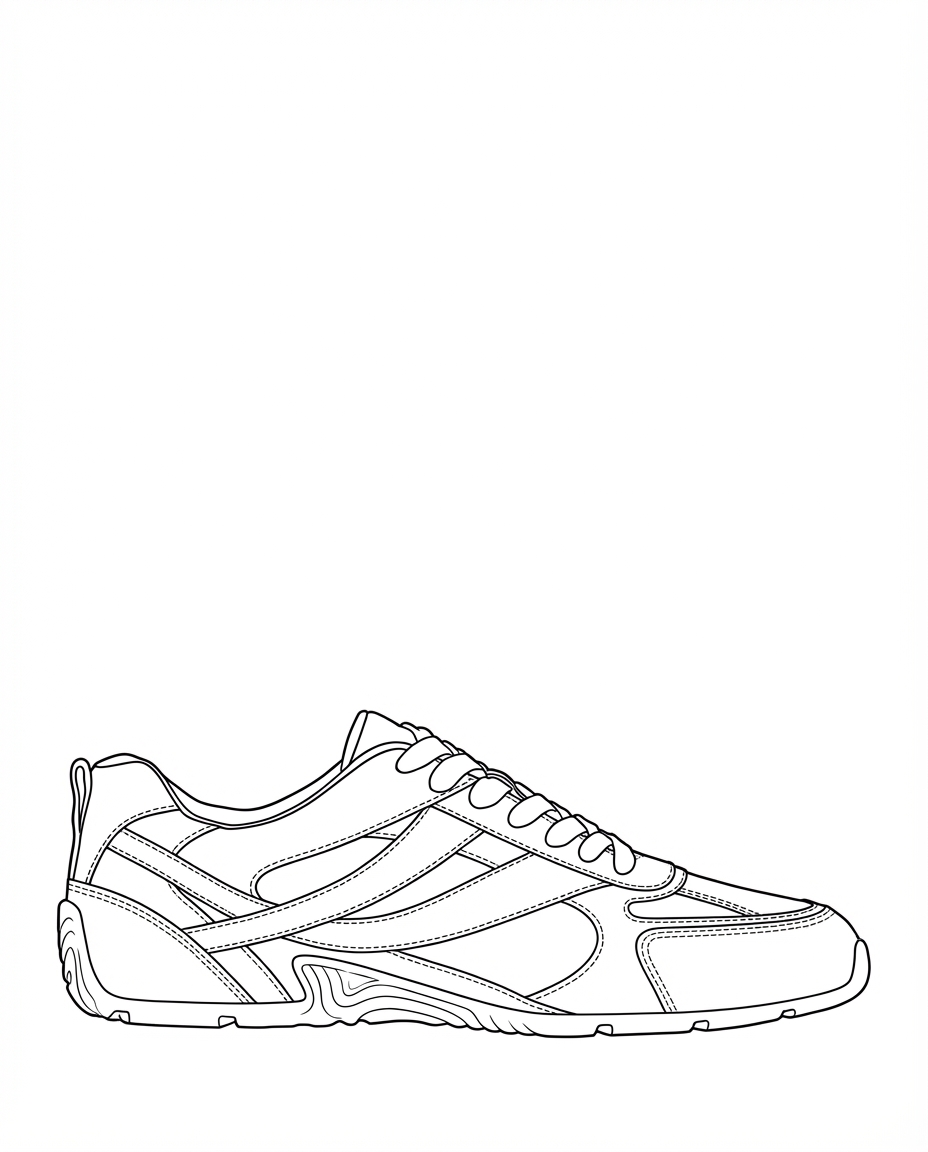 |
Revising Prompts
Not what you were after? You can always refine the image. This will produce a new version with your improvements.
Each generation is a new version you can branch from. Think of it like a tree: prompt the same shoe in different directions to explore variations quickly.